
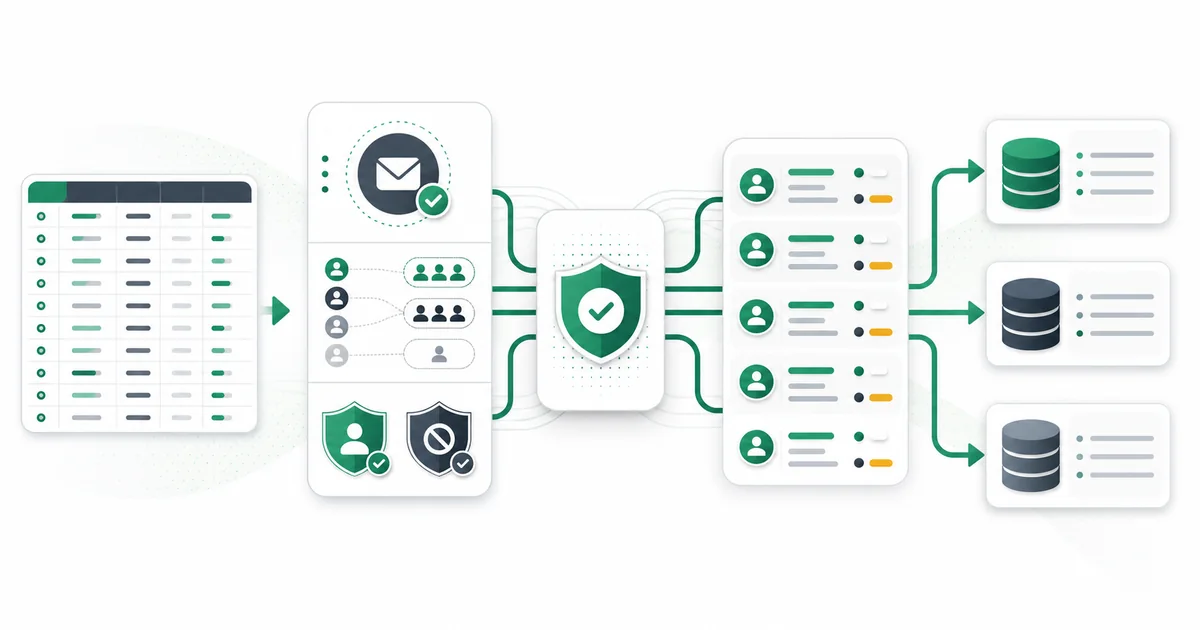
Verify a CRM import before upload by preserving each source record, processing the unique email addresses, reviewing uncertain results, and joining decisions back through a stable ID. The safe output is not a stripped-down list of “good” emails. It is a reversible data package that retains consent, suppression, ownership, and the evidence behind every change.
This workflow works for HubSpot, Salesforce, Mailchimp, and other systems that accept structured imports. Connector availability can vary by configuration, so CSV or XLSX export, verification, and re-import is the dependable general method.
Define the import contract before exporting
Write down the destination object, match key, update behavior, required fields, and rollback method. HubSpot contacts, Salesforce leads or contacts, and Mailchimp audience members have different object and subscription models. Follow the current destination documentation for exact import screens and field rules.
Your source extract should include:
- A stable source record ID that will not change during cleaning.
- The original email value in an untouched column.
- Consent source, purpose, timestamp, or equivalent evidence where applicable.
- Opt-out, complaint, bounce, and suppression state.
- Record owner, source system, and source date.
- Existing destination ID when this is an update rather than a new import.
- Any segmentation fields needed to reconstruct the approved audience.
Do not use email as the only record identity if the source provides a durable ID. Addresses can change, appear on several records, or be shared by a team.
Make a read-only source snapshot
Export the full in-scope rows to a controlled location and record the extraction time, filters, source count, and column definitions. This snapshot is the rollback reference. Restrict access and follow your organization's approved retention policy because the file contains contact data.
Apply suppression rules before deciding what can enter a campaign, but do not erase suppressed rows from the audit snapshot. A technically valid result must never reactivate an opt-out, complaint, or other policy suppression.
Normalize and deduplicate without losing relationships
Trim surrounding whitespace and use the verifier's normalized value for processing. Avoid transformations that guess at a person's address. Build a crosswalk from each unique normalized email to all source record IDs that contain it.
Mailthentic's active bulk workflow accepts CSV and XLSX. It detects a likely email column and processes each unique normalized address once per job. Deduplication reduces repeated checks, but it does not decide whether duplicate CRM records should merge. Two records can legitimately share an operational inbox, and one person can have several historical identities.
| File | Purpose | Must remain unchanged? |
|---|---|---|
| Source snapshot | Rollback and audit reference | Yes |
| Unique verification input | One row per normalized address | No, it is a processing artifact |
| Source-to-email crosswalk | Join one result to every relevant record | Yes during the project |
| Decision file | Technical evidence plus approved CRM action | Version each review |
| Destination import | Only destination-approved fields and records | Archive according to policy |
Run the bulk verification job
Upload the unique address file to the bulk email verifier. The job is asynchronous and can move through queued, running, analyzing, done, or failed states. Available credits, account tier, and runtime settings constrain job size, so do not design the operation around a hardcoded limit.
Download the complete CSV or XLSX result set. Preserve the visible valid, risky, invalid, and unknown buckets and the detailed fields used to support them. A failed job state is an operational failure, not a statement that every submitted address is invalid.
Review invalid, catch-all, and unknown records separately
- Invalid: exclude the email from send eligibility. Keep the source record and reason so an owner can correct it.
- Catch-all: retain the risky evidence. Consider source, consent, relationship, and recent engagement before deciding.
- Unknown or temporary: place in a bounded retry segment. Do not turn a timeout into a permanent failure.
- Disposable: apply the destination and business-use policy. This is a flag that can contribute to an invalid result.
- Role-based: decide whether a shared inbox fits the communication. The flag does not automatically prove invalidity.
The status decision guide provides a starting point, and the list cleaning workflow covers the surrounding database controls. Add a separate CRM decision field such as approved, restricted, correct, suppress, retry, or review. Do not overwrite Mailthentic's status with that derived business decision.
Preserve consent and suppression through every join
A clean join begins with the stable source ID and ends with the same ID in the decision file. Consent and suppression columns should travel beside it. Never infer consent from a valid mailbox, a customer relationship, or a successful import. Do not reset destination subscription state by importing a fresh row over an existing contact.
Before the final upload, compare opt-out and complaint counts between the source snapshot and destination-ready file. Investigate any decrease. Where the destination has a dedicated suppression or subscription mechanism, use it rather than inventing a normal custom field as the only control.
Map explicit destination properties
Create destination fields only when they help operations and have clear definitions. A practical mapping can include:
- Verification status and reason.
- Verification timestamp from
created_at. - Catch-all, disposable, and role flags.
- Confidence score as evidence context, not delivery probability.
- Verification workflow version or source job ID.
- Business decision, decision date, and optional reviewer.
Use names that distinguish native result fields from local decisions. Check field type and length in a sandbox or a small test import. Avoid writing a blank source value over a useful destination value unless that overwrite is deliberate.
Avoid accidental duplicate contacts
Determine how the destination matches existing records. Use its stable record ID for updates when available. If email is the match key, isolate rows where the address was corrected or shared. Do not combine contacts solely because the normalized email matches.
Run a duplicate report before and after the test import. Confirm how the destination handles case, aliases, blank values, and records that already exist in another audience or object. A verification job deduplicates work; it does not replace CRM identity resolution.
Test the import with a representative sample
Create a small sample containing every expected decision: existing update, new record, valid, invalid, catch-all, role, unknown, suppressed, duplicate, and corrected value. Import into a sandbox when the destination supports one, or use a tightly controlled production sample.
Verify counts at each step. Confirm that existing owners, consent fields, subscriptions, suppressions, lifecycle stages, and automation triggers behave as intended. Pause workflows that would send immediately after import until the data team approves the result.
Choose bulk, API, or Zapier for continuing checks
| Workflow | Best fit | Important limitation |
|---|---|---|
| Bulk file | One-time migration, periodic hygiene, or a large prepared import | Requires an export, review, and controlled re-import |
| API | Product-managed entry or record-change events | Single verification is asynchronous, so store pending state and poll |
| Zapier | Lower-volume event automation supported by the Beta action | No public one-click templates were verified, and action output mapping must be tested |
| Native connector | A configured provider whose database status is live | Do not assume every published integration page is connectable |
Developers can use the email verification API. Operations teams can assess the Zapier workflow. The CRM integration hub is the commercial owner for general integration options.
Verify after import without creating a loop
After the controlled upload, compare destination counts and sample field values against the decision file. If ongoing verification triggers on record creation or email change, mark the workflow version and last result time. Make sure writing verification fields does not trigger the same check again.
Monitor records that could not be matched, field errors, automation side effects, and retry outcomes. Keep the rollback snapshot until the import is approved and your retention rule allows deletion. Record who approved the cutover and which file version reached the destination.
Prepare a reversible CRM import
Verify the unique email column with Mailthentic bulk verification, then join decisions back through stable source IDs before uploading to the destination.
Ready to verify your email list?
Start free with 250 verification credits. No credit card required.